Registering Meshes
Dragonfly's iterative closest point (ICP) registration workflow can automatically register meshes by applying the rotation and translation that best aligns the selected mesh with a reference. Right-click the required mesh in the Data Properties and Settings panel and then choose Mesh Registration in the pop-up menu to open the Mesh Registration panel, shown below.
Mesh Registration panel
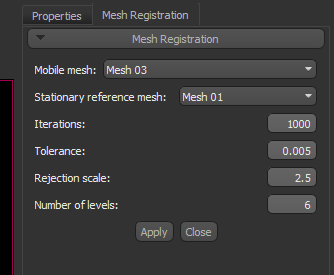
| Description | |
|---|---|
|
Mobile mesh |
Is the mesh that will be registered with the stationary reference mesh. You should note that you can register multiple meshes with the baseline, as well as change the baseline. |
|
Stationary reference mesh |
Is the baseline or reference mesh and will not be modified during the registration process. |
|
Iterations |
Allows you to select the maximum number of iterations that will be applied. Each iteration includes three main steps — finding the closest points, calculating the alignment, and updating the scene. You should note that if the registration criteria (tolerance) is met before the maximum number of iterations is performed, the process will stop. |
|
Tolerance |
Lets you set the required accuracy of the registration at each iteration of the ICP. |
|
Rejection scale |
Lets you set the criteria for rejecting outliers, which can increase the robustness of registrations. This value corresponds to the standard deviation coefficient and points within the Rejection scale will be ignored during registration. |
|
Number of levels |
Lets you set the number of pyramid levels. Deep pyramid levels may increase speed, but can decrease accuracy, while coarse pyramids might have computational overhead on top of inaccurate registration. This parameter should be chosen to optimize a balance. Typical values range from 4 to 10. |
 How to Register Meshes
- Display the mobile and stationary reference meshes in the same scene views.
- Align the centroids of the meshes (see Mesh Pop-Up Menu) or use the Move tools to establish a good starting point for the registration (see Translating and Rotating Objects).
- Right-click the mesh that you want to register (mobile mesh) in the Data Properties and Settings panel and then choose Mesh Registration in the pop-up menu.
The Mesh Registration panel appears on the right side of the workspace.
- Choose the mesh that will be registered with the reference mesh in the Mobile mesh drop-down menu, if required.
- Choose the mesh that will be used as the baseline in the Stationary reference mesh drop-down menu.
This mesh will not be modified during the registration process.
- Select the number of iterations that will be performed, as well as the tolerance, rejection scale, and number of levels.
- Click the Apply button to automatically register the mobile mesh with the selected stationary reference mesh.
- Evaluate the results.
If required, you can modify the selected parameters and then update the registration by clicking the Apply button again.
You can also undo a registration step by clicking the Undo
 button on the Move panel. You should note that you may have to activate the Displace
  tool to access undo.
 - Save the applied changes, if required.
See Exporting Meshes for information about saving registered meshes.


